
 by TrueData
Many perspectives.
One workspace.
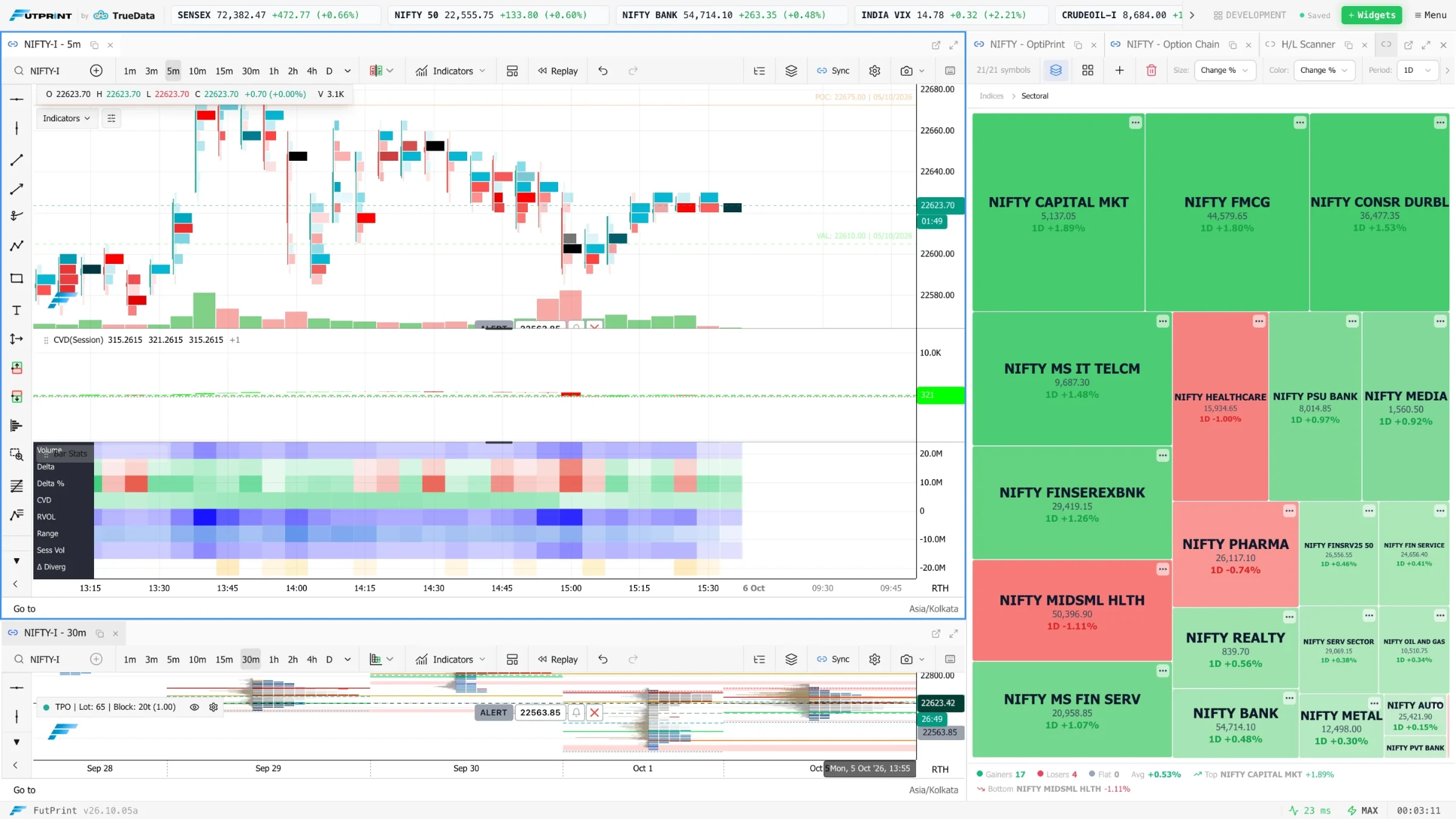
Dock and link modules, save layouts, manage alerts and replay historical sessions. Keep your analysis connected across the terminal.
Go from a question
to a closer look.
Explore how each tool fits your workflow, and the details that matter when using it.
Ask FutPrint
Press Ask in the header beside Widgets. Ask a how-do-I question and open the Read more chip for the full guide, or give a command such as "add a 20 EMA" or "alert me at yesterday's low" and check the cards it leaves; the Acts on chip above the question box names the chart it works on.
- Answers drawn from every page of the FutPrint guides, naming controls as the app names them, with Read more chips to the cited page
- Operates the chart: adds and edits indicators and drawings at the dates and levels you name, zooms, pans and goes to a date, changes the timeframe, symbol, chart type, session and settings, and runs replay
- Creates, edits, pauses, resumes and deletes alerts on price levels, horizontal lines and indicator conditions
- Marks candles by volume or size, and on Pro and Max finds the largest cluster, POC, biggest delta bar, largest Big Trades print and stacked imbalances
- One card per change with Undo for the whole answer; asks before removing everything or deleting an alert
- Included in every plan: 40 quick answers a day, then one a minute up to 300; a chart command counts as one
Answers only questions about using FutPrint and gives no trading advice; places no orders and does not touch positions. Candle picks and order-flow finds read the bars loaded on the chart, and finds need Pro or Max. Questions, answers and chart actions are stored with the account so the team can improve the guides.
Read the guideDockable layouts
Add modules, dock or tab them, resize the layout and save a named workspace for the next session.
- Docking, tabs and resizable panels
- Saved workspaces and autosave controls
- Panel cloning and layout management
Module counts depend on the plan. Multi-monitor and popout behaviour also depend on the browser environment.
Read the guideSymbol & chart linking
Assign panels to a link group, choose a symbol in the watchlist and follow it through the connected analysis views.
- Colour-coded link groups
- Symbol propagation across supported modules
- Chart crosshair, drawings and settings synchronisation controls
Synchronisation support varies by panel; not every module shares every chart setting.
Read the guideAlert Manager
Set a condition, review active and triggered alerts, and edit or disable rules as your analysis changes.
- Create and edit alerts
- Enable, disable and review status
- Configurable table columns
Alert availability is plan-dependent. Delivery channels and background behaviour should be checked in the active product before relying on an alert.
Market Replay
Choose a replay start, step or play through the session, adjust speed and inspect your chart analysis as bars develop.
- Bar-by-bar playback and manual stepping
- Playback speed and timeline controls
- Tick granularity when supported by available data
Historical coverage and tick availability depend on the instrument and available data.
Read the guideMake the market
your workspace.
Data timing, coverage and tools vary by plan.